Team members
Members are people you invite to your Rayobyte account. Each one signs in with their own email address, and works on the same account as you: the same products, proxy credentials, balance and invoices. You stay the owner, and only you decide who has access.
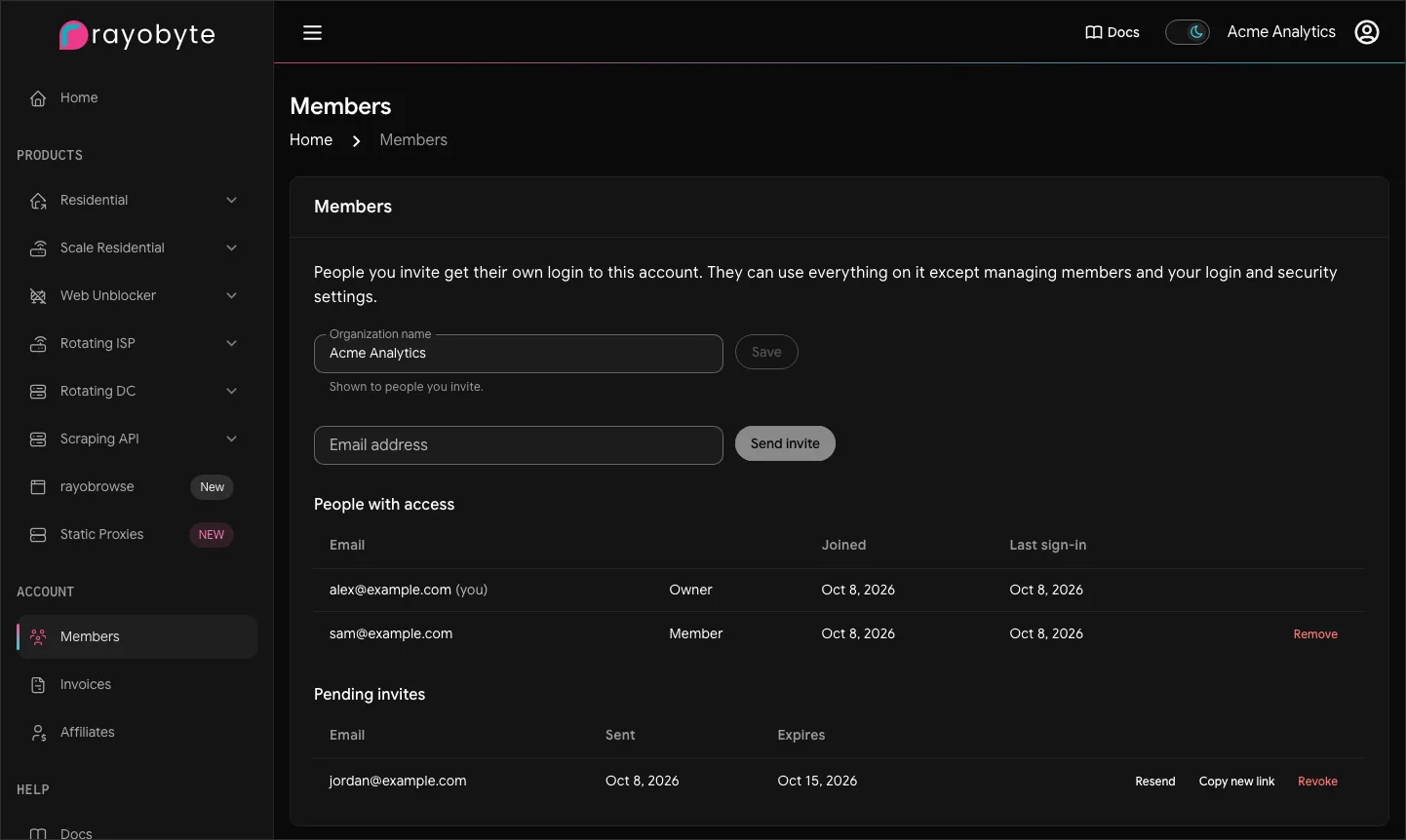
Open Members in the left menu at app.rayobyte.com. The page lists everyone with access, their last sign-in and any invites still waiting.
What members can and cannot do
Section titled “What members can and cannot do”A member can buy bandwidth, open every product, copy proxy credentials, use the API token and the rayobrowse key, and pay invoices.
Only the owner can:
- invite and remove members, and rename the organization
- change the owner’s own login, email address and security settings
- start identity verification
- open the Affiliates page
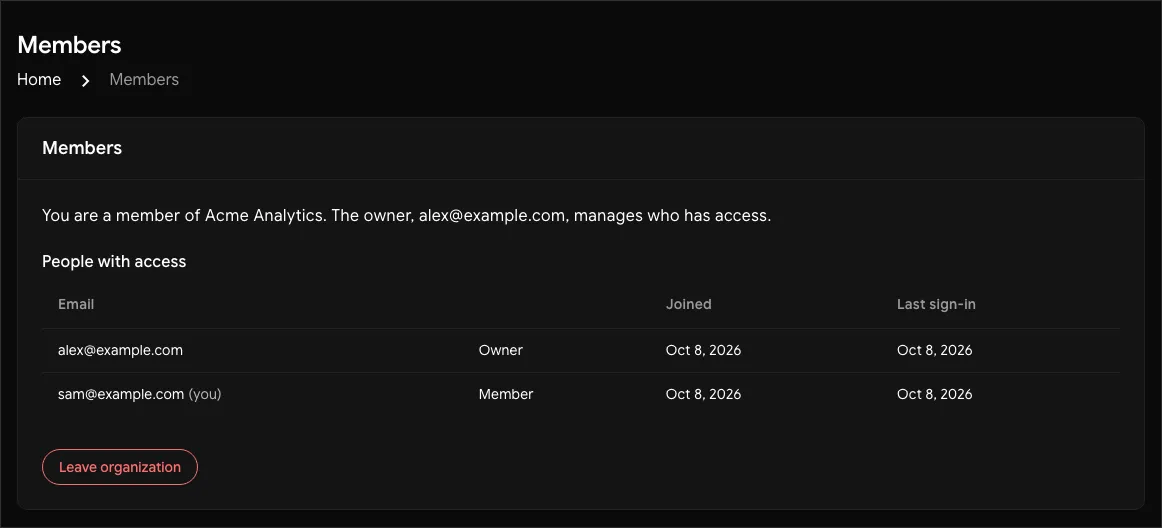
Every member has their own password, passkeys, authenticator app and sign-in codes. A member cannot change their email address. To leave, a member opens Members and selects Leave organization.
Invite someone
Section titled “Invite someone”- Open Members, type the person’s email address and select Send invite.
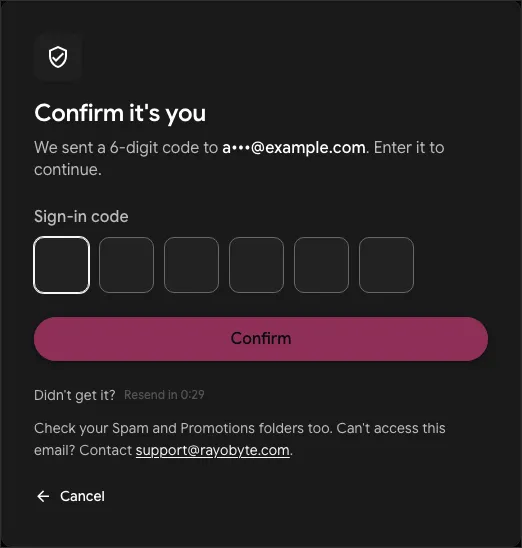
- Enter the 6-digit code we email to you. We ask for it before an invite, a resend or a removal, at most once every 10 minutes.
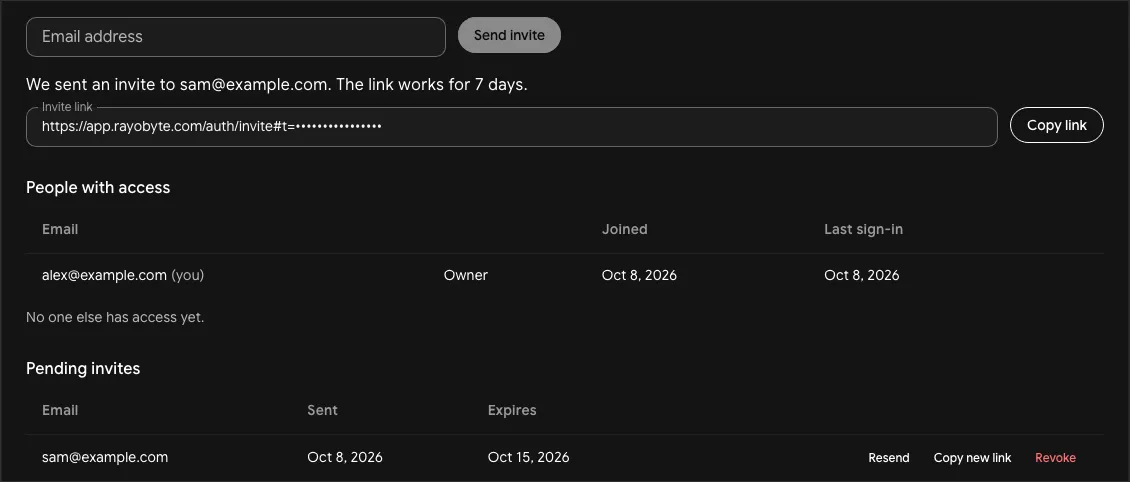
- We email the invite to that address. The page also shows the invite link, so you can copy it and send it yourself.
The link works for 7 days, and only for the address you invited. Under Pending invites, Resend emails it again and Copy new link gives you a fresh link. Both stop the old link from working. Revoke cancels the invite.
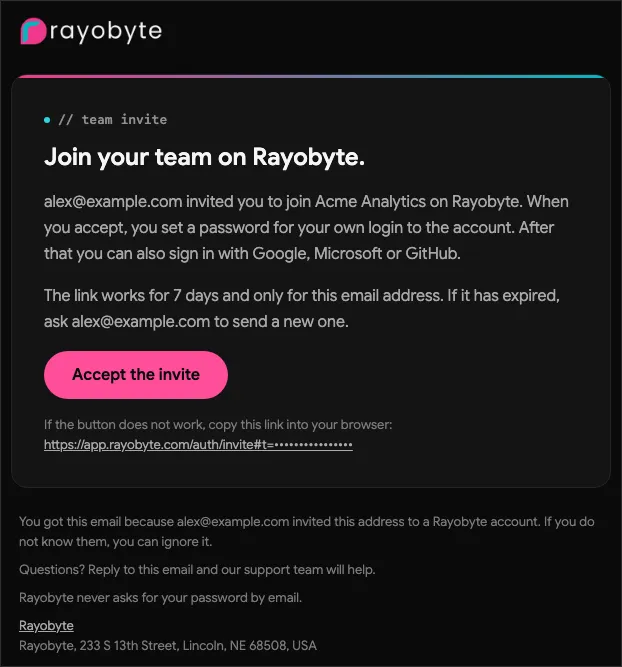
The invite comes from Rayobyte and names you and your organization:
Before your first invite
Section titled “Before your first invite”The invite is refused until these are true:
- Your email address is verified.
- You have set your own password, if support gave you a temporary one.
- Your dashboard password is different from your proxy password. Members can see proxy passwords, so change the dashboard one under Security settings first.
Limits
Section titled “Limits”| Members in one organization | 25 |
| Pending invites at once | 10 |
| Invites sent in 24 hours | 20 |
| Invite link | 7 days |
| Join code | 15 minutes, 5 tries |
Join an invite
Section titled “Join an invite”Open the link in the invite email. Continue with Google, Microsoft or GitHub using the invited address, or create a password.
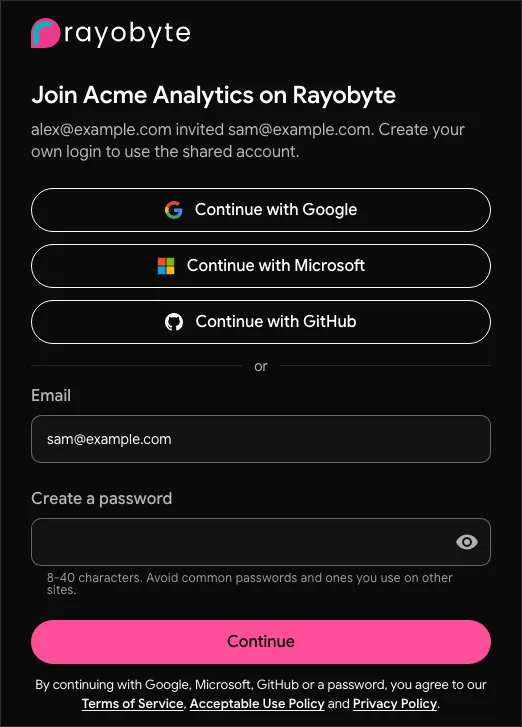
With a password, you finish by entering the 6-digit code we email to the invited address. A code pasted with a space or a dash in the middle works.
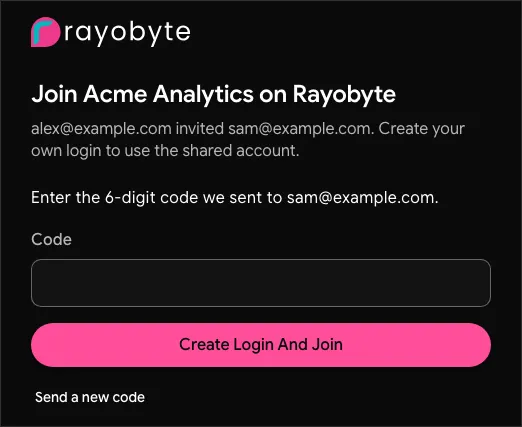
Google and Microsoft usually add you right away. GitHub, and an account on a domain the provider does not vouch for, also asks for the emailed code.
After you join, sign in at app.rayobyte.com with the invited address and your own password, or with Google, Microsoft or GitHub on that address.
Addresses that already have an account
Section titled “Addresses that already have an account”An address that already has a Rayobyte login cannot join another account, and the invite is refused with “already has a Rayobyte account”. Invite a different address, or contact [email protected] if that address has to join your team.
A Google, Microsoft or GitHub account on a different address is refused with “That account uses a different email address”. Pick the account for the invited address at the provider, or join with a password.
Remove a member
Section titled “Remove a member”Open Members, select Remove next to the person and confirm. They lose access at once.
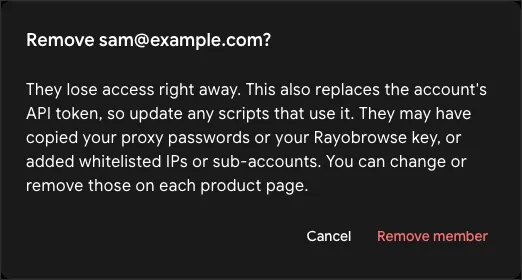
Removing a member also replaces your account’s API token, so update any script that uses it. Proxy passwords, the rayobrowse key, whitelisted IPs and sub-accounts do not change. If the person copied them, change them on each product page.
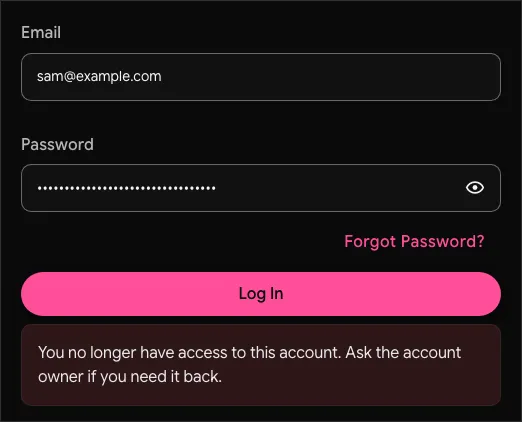
A removed member who tries to sign in sees “You no longer have access to this account”. Their address stays linked to that login, so it cannot be invited again or used to sign up. Contact support if that person needs access again.
API tokens on an account with members
Section titled “API tokens on an account with members”Once anyone has joined your account, the API token can no longer change login or security settings,
such as a password or an email address. Those calls answer 409 SESSION_REQUIRED: sign in to the
dashboard to make the change.
Your name and organization
Section titled “Your name and organization”New accounts see a card on Home that asks for your first and last name, and an organization name. The names are required to save, and the organization is optional. Not now hides the card.
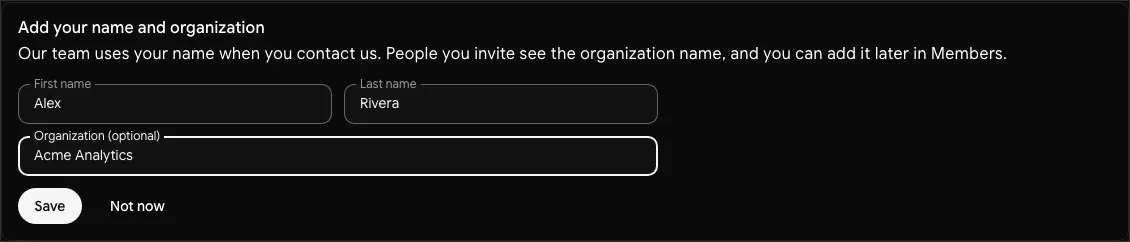
People you invite see the organization name on the invite and in the dashboard header. Change it any time in Members: 2 to 60 letters, numbers and spaces, with no web or email addresses.
Was this page helpful?
Thanks. That helps us fix it.